
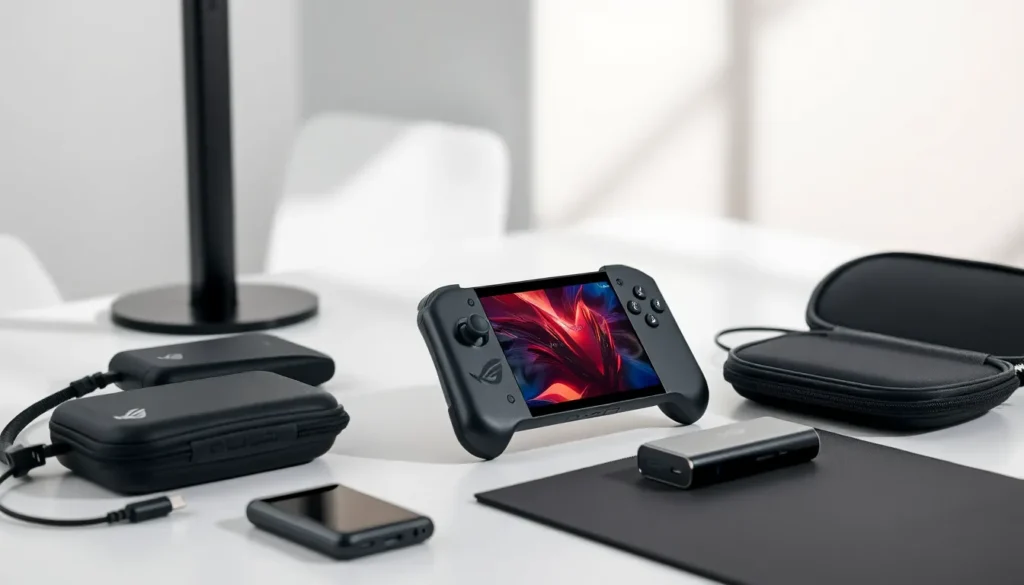
This Asus ROG Ally guide covers everything users need to know about one of the most powerful handheld gaming devices on the market. Asus launched the ROG Ally in 2023, and it quickly became a serious competitor to the Steam Deck. The device runs Windows 11, which opens up access to multiple game libraries including Steam, Xbox Game Pass, and the Epic Games Store. Whether someone just purchased the ROG Ally or is considering buying one, this guide breaks down specs, setup steps, performance tips, and the best accessories to maximize the experience.
Table of Contents
ToggleKey Takeaways
- The Asus ROG Ally is a powerful handheld gaming PC running Windows 11, giving users access to Steam, Xbox Game Pass, and other PC game libraries.
- Use Armoury Crate SE to manage power profiles—Performance mode offers the best balance between battery life and frame rates for most games.
- Optimize gameplay by lowering resolution to 720p and enabling AMD FSR, which boosts performance with minimal visual loss on the 7-inch screen.
- Expand the 512GB internal storage with a high-speed microSD card since modern games quickly fill up available space.
- Essential accessories like a carrying case, USB-C dock, and 65W power bank significantly enhance the ROG Ally experience for gaming on the go.
What Is the Asus ROG Ally?
The Asus ROG Ally is a handheld gaming PC that fits in users’ hands like a traditional gaming controller. Unlike dedicated consoles, the ROG Ally runs a full version of Windows 11. This means players can install and run games from Steam, Xbox Game Pass, GOG, and other PC platforms.
Asus designed the ROG Ally with portability in mind. It weighs about 608 grams and features a 7-inch display with a 120Hz refresh rate. The screen uses IPS technology, which delivers wide viewing angles and accurate colors.
The device targets gamers who want PC gaming freedom without being tied to a desk. Players can enjoy AAA titles during commutes, travel, or just lounging on the couch. The ROG Ally also connects to external monitors, keyboards, and mice for a more traditional setup at home.
Key Specs and Features
Understanding the specs helps users get the most from their ROG Ally. Here are the key specifications:
- Processor: AMD Ryzen Z1 Extreme (or Ryzen Z1 on the base model)
- Graphics: AMD RDNA 3 integrated GPU
- RAM: 16GB LPDDR5
- Storage: 512GB PCIe 4.0 SSD
- Display: 7-inch IPS, 1920×1080 resolution, 120Hz refresh rate
- Battery: 40Wh, providing 2-6 hours depending on game intensity
- Weight: 608 grams
The Ryzen Z1 Extreme chip delivers impressive performance for a handheld device. It handles most modern games at medium to high settings while maintaining playable frame rates. The 120Hz display makes fast-paced games feel smooth and responsive.
Asus included custom software called Armoury Crate SE. This app lets users manage power profiles, adjust fan speeds, and monitor system performance. The ROG Ally also has two back buttons that users can program for extra controls in games.
Connectivity options include a USB-C port with DisplayPort support, a microSD card slot for storage expansion, and a 3.5mm headphone jack. Wi-Fi 6E provides fast wireless internet speeds for online gaming and game downloads.
Setting Up Your ROG Ally
Setting up the ROG Ally takes about 30 minutes. Here’s a step-by-step process:
Initial Boot and Windows Setup
- Press the power button to turn on the device
- Follow the Windows 11 setup prompts
- Connect to a Wi-Fi network
- Sign in with a Microsoft account (or create one)
- Complete any Windows updates
Install Armoury Crate SE
Windows should automatically install Armoury Crate SE during setup. If it doesn’t, users can download it from the Asus support website. This app is essential for managing the ROG Ally’s performance settings.
Set Up Game Launchers
Install preferred game platforms like Steam, Xbox app, or Epic Games Store. Users with Xbox Game Pass can access hundreds of games immediately. Steam users should enable Steam’s handheld mode (Big Picture) for a controller-friendly interface.
Configure Controls
The ROG Ally guide wouldn’t be complete without mentioning control customization. Open Armoury Crate SE to remap buttons, adjust stick sensitivity, and set up the back paddles. Most games recognize the ROG Ally as an Xbox controller, so compatibility is excellent.
Tips for Optimizing Performance
Getting peak performance from the ROG Ally requires some tweaking. These tips help users balance visual quality with battery life and frame rates.
Choose the Right Power Mode
Armoury Crate SE offers three power modes: Silent, Performance, and Turbo. Silent mode extends battery life but limits performance. Turbo mode pushes the hardware to its limits but drains the battery quickly. Performance mode offers a good middle ground for most games.
Adjust In-Game Settings
Not every game needs maximum settings on a handheld. Dropping resolution to 720p significantly improves frame rates with minimal visual impact on a 7-inch screen. Users should also disable demanding features like ray tracing and reduce shadow quality.
Use AMD FSR
AMD FidelityFX Super Resolution (FSR) upscales lower-resolution images to look sharper. Many games support FSR, and enabling it boosts performance without sacrificing much visual quality. This feature is particularly useful for demanding titles.
Manage Background Processes
Windows 11 runs many background processes that consume resources. Users should close unnecessary apps before gaming. Disabling startup programs also helps the ROG Ally boot faster and run smoother.
Keep Drivers Updated
Asus regularly releases driver updates that improve performance and fix bugs. Check for updates in Armoury Crate SE and Windows Update frequently. AMD also releases GPU driver updates that optimize performance for new game releases.
Best Accessories for the ROG Ally
The right accessories enhance the ROG Ally experience significantly. Here are the most useful additions:
Carrying Case
A protective case is essential for travel. The official ROG Ally Travel Case fits the device perfectly and includes space for the charger and cables. Third-party options from companies like Tomtoc and JSAUX also work well.
MicroSD Card
The 512GB internal storage fills up fast with modern games. A high-speed microSD card adds affordable storage. Samsung and SanDisk offer reliable cards with read speeds fast enough for gaming.
Docking Station
A USB-C dock transforms the ROG Ally into a desktop gaming PC. Users can connect monitors, keyboards, mice, and ethernet cables. The official ROG Gaming Charger Dock provides charging and HDMI output in one device.
Power Bank
For extended sessions away from outlets, a 65W USB-C power bank keeps the ROG Ally running. Look for power banks with at least 20,000mAh capacity. The Anker 737 and ASUS ROG Power Bank are popular choices.
Screen Protector
A tempered glass screen protector prevents scratches without affecting touch sensitivity or display clarity. This small investment protects the screen during daily use and transport.


